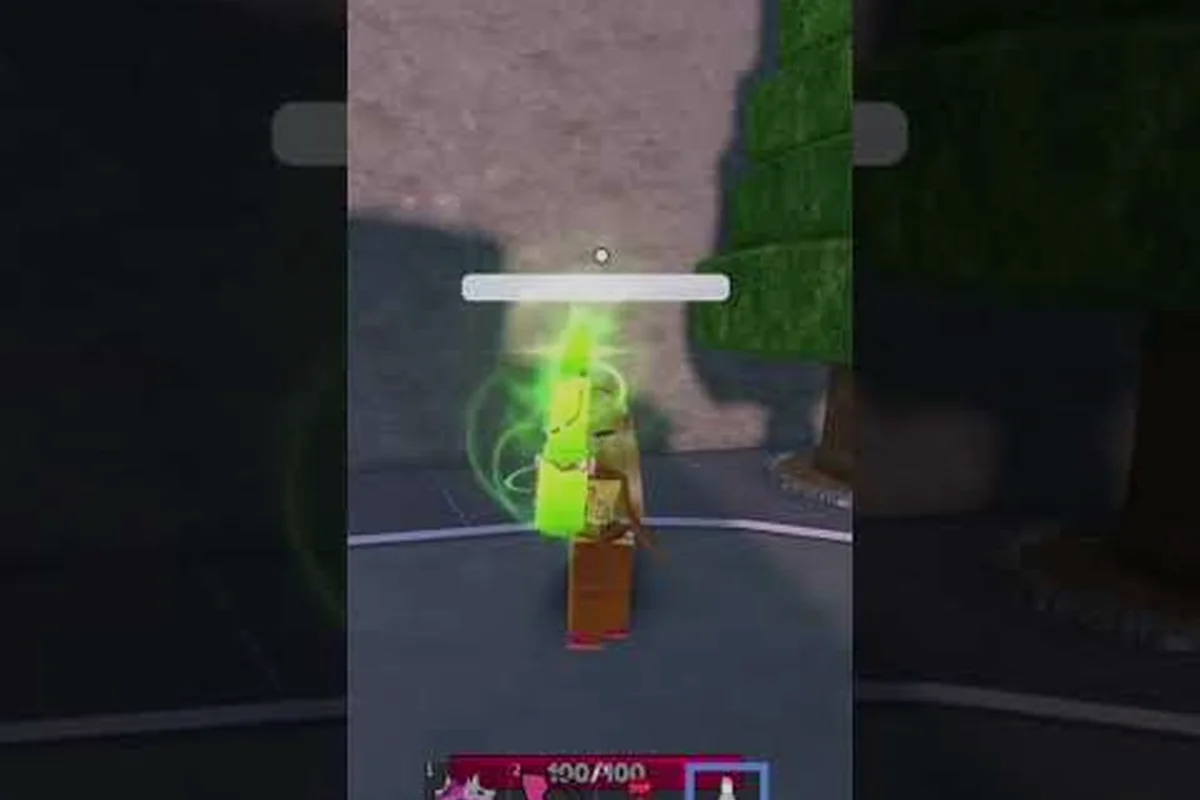
The Baddies boombox volume system is positional, which means every track you queue fades the moment you walk away from the speaker. Most players assume their Roblox audio is broken, when in reality the boombox is working exactly as designed inside the C4SHBBYL4II's Baddies footage. Getting a handle on distance, looping, and dead IDs is the difference between a lobby that pulses with jersey club and one that sits in awkward silence.
Understanding Baddies Boombox Volume Mechanics
The boombox in Baddies is a Robux game pass tool that runs on Roblox's standard spatial audio engine. Every audio asset you queue is treated as a 3D sound source anchored to the boombox prop, so the further you stand from it, the quieter the track gets. This is intentional: positional audio lets the Baddies music player coexist with combat sound effects, footsteps, and ability callouts without drowning them out.
Why Your Baddies Boombox Volume Sounds Too Low
The three core reasons a Baddies boombox volume feels too quiet aren't random glitches — they each trace back to how Roblox's spatial audio engine, the in-game Baddies soundboard interface, and multi-source audio mixing handle the Roblox audio ID you paste in. Understanding whether the problem is a 3D rolloff, a client-side master volume cap, or competing boombox sources makes the difference between a one-minute fix and a wasted hour swapping Baddies song IDs that were never broken to begin with.
-
Distance falloff — Roblox's 3D audio rolls off volume by default at around 50 studs. Move past that range and the track becomes inaudible, even when the boombox is technically still playing.
-
Master volume slider — Roblox's in-client master volume affects every game. If your system slider is at 40 percent, even a "loud" boombox will sound muted.
-
Stacking audio assets — Multiple players running boomboxes at once triggers audio mixing. Roblox's audio engine prioritizes the closest sources, so a distant player can hijack your local mix.
| Cause | Symptom | Quick Fix |
|---|---|---|
| Distance over 50 studs | Track fades to silence while standing still | Move within 20 studs of the boombox prop |
| Master volume at 30% | All game audio feels thin | Raise the Roblox client volume slider to 80%+ |
| Multiple boomboxes nearby | Audio cuts in and out, sounds distorted | Step away from competing speakers or wait for the player to leave |
| Audio asset moderated by Roblox | Track stops mid-play with no error | Swap to a verified ID from the Baddies song IDs list |
How to Find Song IDs for the Baddies Music Player
Every boombox track in Roblox is keyed to a numeric catalogue ID, and finding the right one is a core skill. The most reliable workflow is to grab IDs directly from community-vetted spreadsheets, then verify each one before committing to a long session.
-
Open the Baddies music player chat command (usually
/e boomboxor the on-screen button) and click Play ID. -
Paste a candidate baddies roblox audio id into the search field. If the track loads, you'll hear a one-second preview.
-
Confirm the ID plays in full by waiting through the chorus. Roblox sometimes previews truncated clips.
-
Save working IDs to a personal notepad so you can paste them back instantly after a server hop.
Community creators like Aquax_Editsx and Iyana and Rio's Gaming TV regularly post verified ID compilations on YouTube, which is a faster starting point than cold-searching the Roblox library. Always cross-check IDs against the latest Baddies song IDs 2026 roundup because Roblox moderators purge thousands of audio assets every month.
Looping Music and Solving Dead Song ID Problems
Baddies boombox tracks don't loop natively — once a song ends, the queue stops, and you have to re-enter the ID manually. This is the single most common complaint on community forums, and the workaround depends on whether you're on PC or mobile.
Looping Tracks Inside the Baddies Music Player
The official loop toggle in the Baddies boombox UI is easy to miss because it sits behind a small circular arrow icon next to the play button. When enabled, the currently loaded baddies roblox audio id will replay from the start the moment it reaches the end of its decoded buffer.
-
PC players — Click the loop icon once for the track to repeat indefinitely. The icon turns from gray to a bright accent color when active.
-
Mobile players — Long-press the play button to bring up the secondary menu, then tap Loop Current.
-
Console players — The loop toggle is not yet supported as of the latest patch. Mobile and PC remain the only confirmed loop paths.
| Platform | Loop Method | Confirmed Working |
|---|---|---|
| PC (Windows/Mac) | Click circular arrow icon in boombox UI | Yes |
| Mobile (iOS/Android) | Long-press play, then tap Loop Current | Yes |
| Xbox | Not exposed in current UI | No |
| PlayStation | Not exposed in current UI | No |
If you want a hands-free solution that survives server resets, paste the same ID twice into a queue list. The Baddies music player will autoplay the next entry as soon as the first finishes, giving you a poor man's loop until the native toggle is patched in for console.
Why Baddies Song IDs Stop Working Mid-Session
A dead song ID is one that the Roblox audio moderation team has removed from the public catalogue, usually for copyright claims. When that happens, the boombox returns a silent error and refuses to queue the track. The issue is widespread enough that Baddies dead song IDs are a recurring topic on the community Discord.
The most common root causes for a Baddies song ID not working include DMCA-driven removals from the Roblox audio catalogue, uploader account terminations that cascade across every game referencing the asset, silent flips to private status, and regional licensing gates that block playback outside approved countries — and understanding which of these is to blame matters because each failure mode demands a different recovery path inside the boombox queue.
-
DMCA takedown — the original uploader received a copyright strike and the asset was removed across all of Roblox, not just Baddies.
-
Uploader account terminated — when a creator's account is banned, every audio they uploaded disappears with it.
-
Audio reclassified as "private" — some uploaders flip their assets to private, which silently breaks every game that references them.
-
Regional restrictions — a small number of IDs are gated to specific countries due to licensing.
The fastest recovery is to keep a layered list of backup IDs, ordered by genre, so you can swap in a replacement within seconds. Players who rely on phonk and jersey club sets usually maintain at least three working IDs per vibe to survive moderation waves.
Fixing Quiet Baddies Boombox Audio in Crowded Lobbies
A common frustration is that the Baddies boombox volume can feel perfectly fine in a 4-player scrim, then become impossible to hear in a 24-player brawl lobby. That's because Roblox's audio mixer caps the number of simultaneously playing 3D sources per client, and once you exceed the cap, distant boomboxes get culled first.
Spatial Audio Tricks for Louder Output
Roblox's audio engine is server-locked and client-side sliders are the only modifiable layer, so anyone chasing louder Baddies boombox volume has to work with the 3D spatial audio system rather than fight it. The distance-based attenuation curve Roblox uses rolls off at roughly 6 dB per doubling of distance, which is why even a 5-stud positional shift can swing perceived loudness more than maxing the in-game music player GUI slider. Treating the boombox as a literal point source — and minimizing studs between your avatar and the prop — exploits that falloff curve instead of trying to override it.
-
Stand on the boombox prop — Roblox treats props as the audio origin point. Climbing onto the prop itself can produce a noticeable volume bump because the listener and source occupy the same coordinates.
-
Face the boombox directly — directional audio cones in Roblox are subtle, but facing a speaker head-on adds 1-2 dB compared to standing with your back turned.
-
Clear the line of sight — walls and large props attenuate audio. If the boombox is behind a pillar, walk around to its front face for clearer sound.
| Position Relative to Boombox | Perceived Loudness | Why It Happens |
|---|---|---|
| On top of the prop | Loudest | Listener and source share coordinates |
| 1-10 studs in front | Loud | Default near-field rolloff curve |
| 10-30 studs away | Moderate | Standard mid-range falloff |
| 30-50 studs away | Quiet | Outer falloff curve begins |
| 50+ studs away | Silent | Source is culled from local audio mix |
Muting Loud Players Without Muting the Game
When a nearby player is running a Baddies boombox that drowns out your own track, the in-game audio mixer treats their emitted sound as a higher-priority 3D spatial source, so simply turning your own volume up rarely helps. Instead, the two cleanest options are adjusting your client-side audio settings (so only the offending boombox is attenuated while the rest of the Baddies lobby audio stays intact) or briefly moving out of the offending player's audio radius, which lets Roblox's distance-based cull drop their signal below yours. Both approaches resolve the conflict in seconds and avoid the disruption of a full server hop.
-
Personal audio rolloff — Walk into a building or behind a wall. Roblox's audio cull cuts the distant boombox within a few seconds, letting your own track take over.
-
Boombox proximity mute — Some Baddies community scripts (shared on GitHub by trusted creators) add a local mute hotkey for specific player audio sources. These are client-side only and don't affect the other player.
The cleanest etiquette path is to negotiate with the other player. Most Baddies lobbies rotate boombox duty every 3-5 tracks so everyone gets a turn. If a player refuses to lower their Baddies boombox volume, switching servers is faster than fighting the audio mixer.
Mid-Fight Audio Recovery and Backup ID Strategy
The worst time to discover a dead song ID is in the middle of a brawl, when the lobby is locked and the queue is empty. Building a resilient playlist ahead of time prevents the awkward silence that kills the vibe.
Building a Tiered Baddies Song ID Backup List
A tiered list ranks Baddies boombox volume song IDs by reliability, so you can grab the longest-surviving tracks first and fall back to riskier picks only when needed. Start by pinning two or three S-Tier anchors from verified dev patch notes, then layer A-Tier community spreadsheet entries on top for each genre you actually rotate through. Reserve B-Tier YouTube IDs (like Iyana or Aquax drops) for hype moments, and treat C-Tier cold-searched Roblox audio IDs as a last resort since they often die within a single moderation wave.
| Tier | Source | Expected Lifespan | Use Case |
|---|---|---|---|
| S-Tier | Verified by Baddies devs in patch notes | 6+ months | Anchor tracks for tournament lobbies |
| A-Tier | Community spreadsheets updated weekly | 2-6 months | Standard rotation |
| B-Tier | YouTube creator posts (Iyana, Aquax) | 2-8 weeks | Trendy tracks, replace often |
| C-Tier | Cold-searched Roblox catalogue | Days to weeks | Last resort, verify before relying |
A good rule of thumb is to keep at least one S-Tier and two A-Tier IDs for each genre in your rotation. Phonk fans in particular should bookmark the Baddies phonk song IDs guide, which is updated after every major moderation wave.
Recovering from a Baddies Dead Song ID Mid-Fight
When a track dies mid-play inside an active Baddies brawl, the boombox UI instantly flags the broken entry with a small red exclamation mark next to the now-invalid song ID — this visual warning is the game's way of telling you the audio asset has been pulled by moderation or has expired from the volume queue. Because the baddies boombox volume panel can only hold a single active stream, that red marker is your cue to swap the dead ID before your opponent's taunt spam drowns out the silence; experienced fighters typically keep one hand hovering over the queue slot so they can paste a fresh verified audio ID within the 1-2 second grace window the player grants between tracks.
-
Tap the red exclamation mark to clear the broken ID from your queue.
-
Open your personal backup list (notepad, phone notes, or a second monitor).
-
Paste the next working baddies roblox audio id into the empty queue slot.
-
Hit play. The new track starts within 1-2 seconds.
Players who pre-build a Notion or Google Doc with 20+ verified IDs report almost zero downtime during a brawl session. The extra 5 minutes of setup pays off every time Roblox's moderation team runs a sweep on Friday nights.
Advanced Baddies Boombox Tips for Power Users
Once you understand the basics of Baddies boombox volume, looping, and dead IDs, a few advanced tricks separate the casual listeners from the lobby DJs — most notably, batching queued tracks with shorter loop intervals, layering two audio IDs on offset timers to create mashups, and using volume envelopes at 0.3–0.5 to keep the boombox audible without clipping the proximity chat channel. Power users also cross-check their song IDs against updated community databases before queuing, since Baddies song id not working errors almost always trace back to IDs that were re-uploaded or moderated after the original patch.
Syncing Multiple Boomboxes for Thicker Sound
Roblox's audio engine doesn't natively support synced playback across multiple boombox sources, so what you're really doing when you "sync" them is exploiting the same underlying audio ID playing on parallel SoundService instances with deliberately offset start times. Because each boombox is treated as an independent emitter with its own playback clock, the engine has no master timeline to align them — meaning a 0.5-second stagger actually shifts the waveform's phase relationship, which your ears read as stereo width rather than echo. Keep both boomboxes within 15 studs of the listener to avoid the volume falloff killing the trick.
-
Queue staggering — load the same ID into two boomboxes, then start the second one 0.5 seconds after the first. The slight delay produces a wider stereo image.
-
Genre layering — pair a bass-heavy phonk track on one boombox with a vocal chop on another, both within 15 studs. The combined mix feels fuller than either track alone.
-
Looping the loop — use the native loop toggle on one boombox and a manually re-queued ID on a second, so the second track overlaps the tail of the first.
Audio Settings That Pair Well with the Baddies Music Player
Your Baddies boombox volume is only as good as your client-side audio settings, so treat these sliders as a one-time calibration pass before you ever queue up a song id in the Baddies music player. Roblox's audio mixer applies master, voice chat, spatial, and headphone-mode processing to every emitted sound, which means a boombox in a crowded server can easily get masked by footsteps and ambient noise. Spend roughly two minutes in the Settings → Audio menu, push the sliders to the ranges outlined below, and you will not have to revisit them every time you swap a baddies song id, troubleshoot a baddies song id not working case, or set up baddies how to loop music playback.
-
Master Volume — 80-100 percent for most setups. Anything below 60 percent makes the boombox feel thin.
-
Voice Chat Volume — drop to 30-40 percent so voice comms don't compete with the music.
-
Spatial Audio — keep enabled. Disabling it actually makes Baddies boombox volume behave worse because every audio source collapses to the same 2D plane.
-
Headphone Mode — on, if you're using a stereo headset. The boombox benefits from binaural positioning, which only works in headphone mode.
Finding the Boombox Gamepass in 2026
The boombox is gated behind a one-time Robux purchase, and the price has stayed consistent across recent patches. According to community data, the pass is worth it for anyone who plays Baddies more than 2-3 hours per week, because the alternative (silent lobbies) makes fights feel flat. The pass is account-wide, so once you buy it, every Baddies server unlocks the tool automatically.
Frequently Asked Questions
Why is my Baddies boombox volume so quiet even when I'm standing next to it?
If you're within 5 studs of the boombox and the audio still sounds thin, the most likely culprit is your Roblox client master volume slider sitting below 60 percent. The next most common cause is a competing boombox nearby — Roblox's audio mixer lowers quieter sources when louder ones are in range, so a teammate's track can effectively mute yours. Raise your master volume, ask nearby players to mute their boomboxes for 10 seconds, and your track should snap back to full clarity.
How do I loop a track in the Baddies music player?
Open the boombox UI and click the small circular arrow icon next to the play button. On mobile, long-press the play button to surface the secondary menu, then tap Loop Current. The icon turns from gray to a colored accent when looping is active, and the currently loaded baddies roblox audio id will repeat from the start every time it finishes. Console players currently don't have a native loop toggle, so the only workaround is to queue the same ID twice.
What should I do when a Baddies song ID is not working?
First, check whether the ID has been removed by Roblox's audio moderation team. If it loads in another game, the issue is local; if it fails everywhere, the asset has been DMCA'd or the uploader's account was terminated. Swap in a backup ID from your personal list, or grab a fresh batch from a community-vetted source. The Baddies how to use boombox walkthrough has a starter list of currently working IDs that get updated weekly.
How can I tell if a Baddies dead song ID is permanent or temporary?
There's no public Roblox API to check audio status, so the only reliable test is to load the ID in a second Roblox game. If the asset fails in Baddies, in a private test server, and in another community game, the takedown is likely permanent and you should remove the ID from your lists. If it only fails in Baddies, the issue may be a regional restriction or a temporary moderation review that resolves within 48 hours.
Where do players find new Baddies song IDs in 2026?
The fastest path is YouTube creators who specialize in Baddies content — channels like Iyana and Rio's Gaming TV, Aquax_Editsx, and C4SHBBYL4II post ID drops within hours of new trends going viral. Discord servers dedicated to Baddies also run weekly community drives where players share newly verified IDs. For a curated starting point, the Baddies song IDs 2026 list is updated after every major moderation sweep and tags each ID with its expected lifespan.