Nothing kills a Baddies session faster than pressing a key and watching your character stand completely still. Whether you built a custom control scheme on PC or you're trying to tap through your first round on a phone, the game has a handful of known input quirks that can leave your weapons, emotes, and movement locked out mid-match. This guide walks through the exact rebind steps, the mobile layout traps to avoid, and where to file a real bug report when the issue is on the developer's end.
Why Baddies Keys Stop Responding In The First Place
Most "Baddies keys not working" complaints fall into one of three buckets: a stale keybind cache, a session-level state bug, or a platform-specific input layer the Roblox client can't translate cleanly. The game's control system is event-driven, meaning the client registers a key press, sends a signal to the server, and waits for confirmation before triggering an animation or weapon swing. When any link in that chain desyncs, the input appears dead even though your hardware is fine.
The most common trigger, confirmed on the official Baddies game page, is logging out while at or below 30 HP. The game treats that exit as a death state and strips your equipped weapons on the next login. Players often mistake the missing weapons for a keybind failure because the slot is empty, and the hotkey does nothing when there's nothing bound to it. A full rejoin clears the desync, and re-equipping from the inventory tool slot restores function.
Secondary triggers include overlay conflicts (Discord, MSI Afterburner, and screen recorders stealing keypresses), Roblox's mobile virtual joystick losing calibration after a phone call or notification, and the new input rebind menu occasionally failing to write changes to local storage on the first attempt.
The Three Input Layers You Actually Have To Fix
Roblox, Baddies, and your operating system each run their own input handler, and a fix at one layer does nothing for the other two. For example, switching your keyboard to the EN-US layout inside Windows will not clear a stale Baddies in-game keybind cache left over from a recent rejoin, and disabling Discord's overlay inside the Roblox client will not lower the touch latency that causes mobile swipe inputs to drop frames. Treating the Roblox global hotkey layer, the Baddies weapon and emote bind layer, and the OS keyboard or mobile polling layer as three independent troubleshooting tracks is the fastest path back to a working setup, since chasing a single suspected cause usually wastes time across two of the three systems.
| Layer | What It Controls | Common Failure | Quick Fix |
|---|---|---|---|
| Roblox Client | Global hotkeys, shift lock, camera reset | Overlay apps stealing focus | Disable Discord overlay, restart client |
| Baddies In-Game | Weapon binds, emote binds, menu keys | Stale cache after rejoin | Full rejoin, re-equip from inventory |
| OS / Hardware | Keyboard layout, mobile touch latency | Wrong input language, high polling lag | Set EN-US layout, cap FPS to 60 on mobile |
When only one layer is broken, the symptoms look identical: keys feel dead, taps do nothing, and emotes refuse to trigger. Walking through all three before assuming the game is bugged saves a lot of frustration and a lot of pointless bug reports.
Rebinding Controls On PC The Right Way
The Baddies keybind menu lives inside the Roblox settings overlay, not the in-game pause menu, which trips up a lot of first-time players. You have to press Escape to open the Roblox menu, then navigate to Settings → Controls, not the gear icon inside the Baddies HUD. The in-game gear icon only handles audio and graphics; rebinding happens one layer up.
Step-By-Step Rebind Flow
-
Press Escape during a match to open the Roblox menu.
-
Click Settings in the top-right corner of the menu.
-
Select the Controls tab on the left sidebar.
-
Hover over the action you want to remap (Slash, Block, Emote, etc.).
-
Press the new key — the field updates immediately if Roblox registers the input.
-
Click Save at the bottom right; do not close the window with the X button.
If the field does not update when you press a key, Roblox is not seeing the input at all, which means an overlay or background process is intercepting it. Close Discord, OBS, NVIDIA overlay, and any RGB software, then repeat the rebind. The most reliable indicator is the field accepting the first keypress without delay; any lag there means the OS layer is the problem, not the game.
Default vs Recommended PC Bindings
The default scheme works, but a few swaps make combat and emotes much smoother. Most "keys not working" reports in the Baddies Discord trace back to unintended overlap between the emote wheel, camera reset, and weapon swap inputs rather than broken hardware. The table below compares the defaults with a layout that experienced players on the community Discord tend to use after the first week, isolating each contested key so you can rebind only the slots that are actually causing input conflicts on your setup.
| Action | Default Key | Recommended Key | Reason For Swap |
|---|---|---|---|
| Slash / Primary Attack | 1 | Left Mouse (already bound) | Keep finger on mouse for aim |
| Block | 2 | Right Mouse | Hold to block while moving |
| Emote Wheel | B | F | Reaches without leaving WASD |
| Camera Reset | Q | C | Avoids conflict with emote binds |
| Menu | Escape | Escape | Leave as default |
| Weapon Swap | Mouse Wheel Up/Down | X (toggle) | Prevents accidental swaps mid-combo |
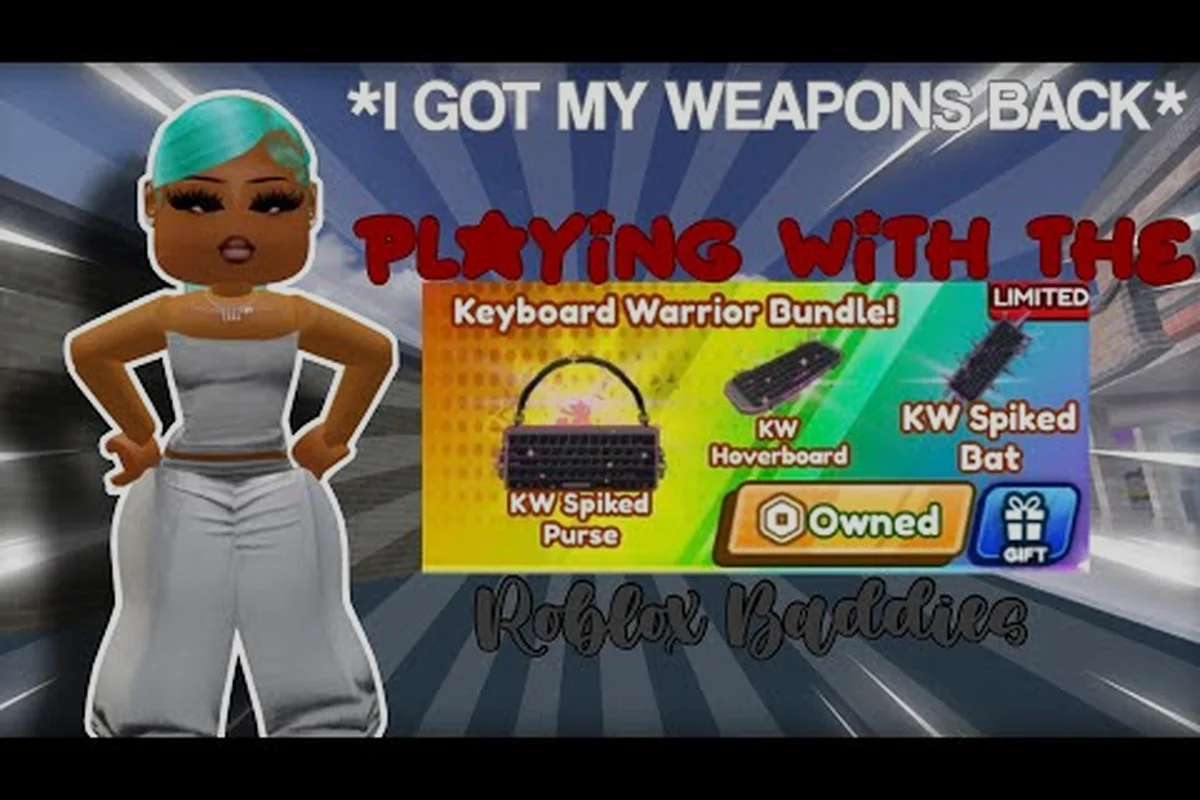
If your mouse has extra side buttons, binding Camera Reset to Mouse 4 or Mouse 5 frees up an entire hand for movement. Several community showcase videos, like the Keyboard Warrior bundle walkthrough by 𝓁𝒾𝓁𝒾'☀️, demonstrate how side-button rebinds turn defensive play into something much more fluid.
When Rebinding Still Fails
There is a known edge case where the rebind menu shows the new key but the in-game action still triggers on the old one. Community testing on the bug-report channel suggests this is a cache desync, and a full client restart — not just leaving the game — resolves it. Close Roblox entirely through the system tray, wait five seconds, then relaunch. If the issue persists after a clean restart, the keybind is conflicting with another Roblox game you've played recently; clearing the local Roblox keybind cache from %appdata%/Roblox is the nuclear option that fixes it.
Baddies Mobile Controls And How To Get Them Working
Mobile is where the "keys not working" reports spike the hardest, because the control system on phones is virtual, not physical, and the calibration can drift between sessions. Baddies does ship with a mobile layout, but the Roblox virtual joystick can lose registration after the app is backgrounded for more than a few seconds, which is why a fresh launch often "fixes" what looked like a permanent bug.
The Mobile Layout Breakdown
The Baddies HUD on mobile splits the screen into four zones — movement joystick, action buttons, emote wheel, and camera drag — and each zone has its own quirks driven by how the Roblox client overlays native Android UI. Understanding this layered layout is the first step to diagnosing why a tap is going nowhere, because a missed input in Baddies often isn't a control bug at all but a layering conflict between the gesture bar, notification shade, and Roblox's scaled viewport. Before you assume the Baddies keys not working issue is on the developer's end, check which zone is failing and what native Android element is sitting on top of it.
| Zone | Position | What It Controls | Common Issue |
|---|---|---|---|
| Movement Joystick | Bottom-left | Character movement | Drift after phone call |
| Action Buttons | Bottom-right | Attack, block, jump, sprint | Buttons overlap with chat on small screens |
| Emote Wheel | Top-right corner | Emote selection | Hidden behind notification bar on some Android devices |
| Camera | Full-screen drag | Camera rotation | Conflicts with chat input when keyboard is open |
If the action buttons feel unresponsive, the most common cause is screen scaling — the Roblox client on Android can render at 100% even on devices that report 90% or lower, which pushes the action buttons under the system gesture bar. Force-closing the app, opening Roblox settings, and setting Display to "Default" (not "Fill") usually repositions the buttons into the tappable zone.
Step-By-Step Mobile Calibration
-
Force-close the Roblox app from the recent apps menu.
-
Reopen Baddies directly from the game page, not a shortcut or shared link.
-
Wait for the loading screen to fully disappear before tapping anything.
-
Tap the emote wheel icon in the top-right once to confirm it registers.
-
Walk to a wall and tap the attack button — if the wall takes damage, the layout is calibrated.
-
Open and close the chat box once; this re-anchors the input layer.
Players who skip step 3 and tap during the loading transition frequently desync the input layer, and the session will feel laggy or unresponsive for the entire match even though nothing is actually broken. Taking 10 extra seconds to let the game settle avoids a full reset later.
Mobile-Specific Input Bugs
The Baddies weapons-not-firing clip by Rogurl shows a mobile player unable to trigger weapon swings despite the button clearly registering on screen. The issue tracked back to the Roblox client caching an older input map after a hotfix; clearing the app's cache from Android settings (not the in-game cache) restored function. On iOS, the same fix requires deleting and reinstalling the Roblox app, because iOS does not expose a per-app cache clear without a full uninstall.
If the mobile controls still refuse to respond after a clean reinstall, the Baddies HUD itself may be the culprit. The developer has acknowledged HUD scaling bugs in the Meow Meow Games community group, and rolling back to a previous Roblox client version (via the Roblox app's beta channel when available) sometimes restores the older HUD that worked.
File A Bug Report That Actually Gets Read
Baddies does not have an in-game bug-report button, which is why so many "keys not working" complaints vanish into the void on social media. The developer, Meow Meow Games, runs a dedicated Roblox community group that is the official channel for bug reports, suggestions, and account questions. Posting there is the difference between a fix in the next patch and silence.
What The Developer Actually Needs
Reports that get fixed share three traits: they include the device, they include a screen recording or clip, and they include a timestamp. Reports that get ignored are usually "my keys don't work fix it" with no detail. The table below compares a low-quality report with one the developer has confirmed they act on.
| Field | Low-Quality Report | High-Quality Report |
|---|---|---|
| Device | "My phone" | "iPhone 13, iOS 17.4, Roblox 2.640" |
| Repro Steps | "I press the button" | "Open inventory, equip katana, press 1 — slot stays empty" |
| Evidence | None | 15-second screen recording attached |
| When It Started | "Today" | "After the 2026-09-12 update" |
| Workarounds Tried | None | "Full rejoin fixes it once, breaks again next match" |
Including the workarounds is the most important detail, because it tells the developer whether the bug is client-side, server-side, or a desync between the two. A bug that a rejoin fixes is almost always a client cache issue, which gets a different fix priority than a bug that no workaround touches.
Matching Each Problem to the Right Channel
-
Input / controls / keybind bugs → Meow Meow Games community group wall post
-
Account issues / bans / moderation → Direct message to a group officer (see ban appeal section below)
-
Robux or game pass issues → Roblox support, not the developer
-
Exploits or cheaters → In-game report button (the flag icon on the player list) plus a community group post
Sending a bug report to the wrong channel is the single most common reason "baddies keys not working" tickets go unresolved, and the developer has stated plainly that Robux or game pass refund questions belong with Roblox support rather than the group wall, because they have no backend access to billing systems — so a keybind complaint accidentally bundled into a Roblox billing ticket typically waits weeks in the wrong queue, which is why the community group wall post is reserved strictly for input, controls, and keybind bugs.
Ban Appeal And Account Recovery
If your controls stopped working because your account was actioned, the path back is through a ban appeal, not the bug-report channel. A ban is a deliberate state, and the support workflow is different from a broken keybind. Filing the wrong form is the fastest way to spend two weeks waiting for a reply that was never going to come.
What Triggers An Automatic Ban
Baddies layers Roblox's standard moderation on top of the developer's own anti-exploit filters, so the trigger list below combines platform-level detections (chat filter, IP fingerprint) with client-side scanners the Baddies developer ships inside the game client. Community reports on the Baddies Discord show that most automatic bans in 2024 were tied to executors and macro-style input automation rather than to actual keybind misconfigurations, which is why the "keys not working" symptom you're debugging rarely overlaps with a ban — but it's worth ruling out before you start swapping control schemes on PC or mobile.
| Trigger | Detection Method | Typical Duration | Appealable? |
|---|---|---|---|
| Exploit tool detected | Client-side scanner | 7-day minimum | Yes, after 7 days |
| Alt account confirmed | IP + device fingerprint | 14 days | Yes, hard to win |
| Slur or harassment in chat | Roblox filter | 1-day to 14-day | Yes |
| False positive (innocent) | N/A | Varies | Yes, fast track |
False positives happen most often to players who use macros for emotes or to streamers running OBS scene-switch hotkeys, because both can look like input automation to a naive scanner. If your setup triggers a ban you believe is wrong, the appeal needs to include the macro config and a short explanation of what it does, not just "I didn't cheat."
How To Submit A Ban Appeal
The ban appeal flow is a direct message to a Meow Meow Games group officer, not a public wall post. Public posts about bans are usually deleted by moderators to keep the channel focused on gameplay. The Baddies account recovery guide covers the exact message template and the information officers ask for, but the core fields are:
-
Your Roblox username (not display name)
-
The date and time of the ban (in your timezone)
-
The exact message the ban screen showed
-
A short, factual explanation of what you were doing at the time
-
Any evidence (clips, screenshots) that supports your case
Appeals that contain insults, demands, or demands for compensation get archived without a response. The appeals queue is short, but tone matters because the people reading it are volunteers in many cases. A calm, specific message gets a response in 24-48 hours; a rant sits in the queue for weeks.
Quick Reference Checklist
For players who want the fastest path back to a working setup, the checklist below covers the order of operations that resolves 90% of "keys not working" reports. Work top to bottom, and stop at the first fix that works.
| Step | Action | When It Applies |
|---|---|---|
| 1 | Full rejoin (leave and re-enter the server) | Weapons missing, emotes dead |
| 2 | Roblox Settings → Controls → re-save all binds | Rebinds not sticking |
| 3 | Disable Discord / OBS / overlay apps | Keypresses not registering at all |
| 4 | Force-close Roblox on mobile, reopen from game page | Mobile buttons unresponsive |
| 5 | Set OS keyboard layout to EN-US | Wrong symbols on keypress |
| 6 | Clear Roblox app cache (Android) or reinstall (iOS) | Persistent mobile input lag |
| 7 | File bug report on Meow Meow Games group | Nothing above fixed it |
| 8 | Submit ban appeal via DM to group officer | Account actioned, not a bug |
The order is deliberate because each step is faster than the one after it: a full rejoin completes in roughly 30 seconds, while setting OS keyboard layout to EN-US or clearing the Roblox app cache on Android adds minutes of OS-level work. A ban appeal through the group officer DM is the slowest path and only valid when the account itself was actioned, not when the keys-not-working symptom stems from a real input bug — so always exhaust the cheap in-client fixes (steps 1–4 in the checklist) before treating the issue as developer-side.
Frequently Asked Questions
How do I rebind keys in Baddies without losing my settings every match?
Open the Roblox menu with Escape, go to Settings → Controls, and remap each action. After saving, do not close the window with the X — click the Save button at the bottom right. If the binds still reset between matches, a full client restart (close Roblox from the system tray) clears the stale cache and locks in the new layout.
Can I play Baddies on mobile with a controller?
Yes, but only through Roblox's built-in controller support, which has to be enabled in the Roblox app settings before you launch the game. Bluetooth controllers work on both Android and iOS, and the Baddies HUD auto-repositions when a controller is detected. Wired controllers require an OTG adapter on Android and a Lightning-to-USB adapter on older iPhones.
Where do I report a bug that the official group ignores?
The Meow Meow Games group is the only channel the developer monitors, but if a post sits without a response for more than a week, sending a direct message to a group officer escalates it. Include the same evidence (device, repro steps, clip) you would use in a public post, and reference the original post so the officer can pull it up quickly.
How long does a Baddies ban appeal take to resolve?
Standard appeals take 24-72 hours, but appeals that require log review can take up to two weeks. The fastest resolutions are the ones that include a clip showing exactly what the player was doing when the ban triggered, because the moderator does not have to dig through server logs to verify the story.
What should I do if my Baddies keys are still not working after every fix in this guide?
If a full rejoin, a clean Roblox reinstall, and a bug report to the Meow Meow Games group all fail to resolve the issue, the problem is almost certainly on Roblox's end — either a client-side regression or a temporary outage. Check the Roblox status page and the Baddies community group for active incident posts, because the developer usually pins an update when a widespread input bug is in progress.