Roblox Baddies low FPS is the single most reported complaint in the community right now, and it almost always masks a deeper issue like a baddies server full state, a stubborn baddies join error, or a baddies not loading screen that never finishes. Players who walk in expecting clean 60 FPS gameplay instead get rubber-banding, micro-stutters, audio dropouts, and an occasional baddies black screen right after the loading bar hits 100%. Most of these problems come from the same handful of root causes: an overstuffed server, a stale Roblox client cache, GPU driver quirks on Roblox's legacy renderer, or a mobile device that simply cannot keep up with the crowd density the experience puts on screen.
This guide walks through every fix that has actually worked for players in the field. You will learn how to diagnose whether the bottleneck is on your side or the server's side, how to clear the cache and DNS records that most Roblox troubleshooting guides forget to mention, and which in-game settings to flip before giving up and reinstalling. We will also cover baddies controls not working cases that masquerade as lag, because unresponsive inputs after a rubber-band spike are a separate beast from actual frame drops. By the end, you should be able to tell the difference between a real network problem, a client problem, and a server capacity problem, then apply the right remedy for each.
Before we dive into the tweaks, the table below maps each common symptom to the most likely cause. Skim it first so you can jump straight to the section that actually matches what you are seeing on your screen.
| Symptom | Most Likely Cause | First Fix to Try | Section |
|---|---|---|---|
| Frame drops in crowded lobbies | Server overload (baddies server full) | Rejoin during off-peak hours | Network |
| Baddies not loading past 90% | Corrupt Roblox client cache | Clear Roblox cache folder | Client Cache |
| Baddies black screen after load | GPU driver + Roblox legacy renderer | Toggle Roblox graphics mode | Display |
| Inputs feel delayed mid-fight | baddies controls not working after a spike | Reset controls + rejoin | Input |
| Baddies join error 17/279 | DNS or session token issue | Flush DNS + re-authenticate | Network |
| Stutters only in specific arena | Map-specific asset bloat | Lower texture quality | Display |
| Random disconnects every 10 min | Roblox client version mismatch | Force reinstall Roblox | Client Cache |
Diagnosing Baddies Low FPS vs. Server-Side Lag
Baddies low FPS looks the same on screen no matter where the bottleneck actually lives, so the first job is to figure out whether the problem is your machine, your network, or Roblox's servers. A frame counter is the easiest diagnostic tool you have, and it does not require any third-party software. Open Roblox Studio settings or use the built-in performance HUD (Shift+F5 in the Roblox client) to display the current FPS, ping, and memory usage in the top-left corner. Read those three numbers before doing anything else, because they tell you almost everything you need to know.
Reading the FPS vs. Ping Distinction
FPS measures how many frames your client renders per second, while ping measures round-trip latency to the game server in milliseconds. A 30 FPS reading with 80 ms ping usually means your hardware is the bottleneck. A 60 FPS reading with 300 ms ping usually means the server is struggling to send updates fast enough, which on a community game like Baddies is almost always a baddies server full condition. When both numbers are bad at the same time, the problem is usually a routing issue between your ISP and the Roblox edge node, and a simple DNS flush or VPN change can cut your ping in half.
| Metric | Good | Warning | Bad | Likely Cause |
|---|---|---|---|---|
| FPS | 55-60 | 30-54 | Below 30 | GPU, CPU, or RAM bottleneck |
| Ping | Below 80 ms | 80-150 ms | Above 150 ms | Network routing or server distance |
| Memory | Below 70% | 70-85% | Above 85% | Background apps or memory leak |
| Packet Loss | 0% | 1-2% | Above 2% | Wi-Fi instability or ISP issue |
The Crowd-Density Test
Crowd density is the single biggest frame killer in Baddies. Because the experience stacks many character models, weapons, glow effects, and a custom HUD on screen at once, the GPU pipeline gets saturated the moment a server fills past 18-20 players. Community data from player recordings suggests that performance degrades by roughly 25-40% once a server crosses 20 concurrent players, and most public servers fill well past that within minutes of peak hours. If your FPS only tanks during big crowd moments and stays clean in quieter arenas, the problem is server load, not your machine. In that case, switching to a private server with a code from a friend, or rejoining during off-peak hours (early morning or late night in your timezone), will fix more than any local tweak.
Clearing the Roblox Client Cache and DNS
The Roblox client stores a large amount of cached data in a hidden folder, and when that cache goes stale, you can hit a wall with Baddies not loading, Baddies join error messages, or a Baddies black screen that never resolves. The fix is not a full reinstall, which often fails to clear the deepest cache layers. Instead, manually delete the Roblox cache folders, flush your DNS cache, and re-authenticate your session token. Most players who try this sequence report a working game again within five minutes.
Step-by-Step Cache Reset
The exact folder paths differ by operating system, but the procedure is essentially the same. Close Roblox completely first, including the Roblox Player and any background Roblox processes in Task Manager. Then navigate to the cache folder, delete its contents (not the folder itself), restart your machine, and re-launch the game. On Windows, the primary cache lives in %localappdata%\Roblox and %appdata%\Roblox. On macOS, look inside ~/Library/Roblox. On mobile, clearing the Roblox app's storage from your system settings achieves the same effect.
| OS | Cache Path | What to Delete | Restart Required |
|---|---|---|---|
| Windows | %localappdata%\Roblox | All files, keep folder | Yes |
| Windows | %appdata%\Roblox | Logs and HTTP folder | Yes |
| macOS | ~/Library/Roblox | Versions and logs subfolders | Yes |
| iOS | Roblox app storage | Offload app, then reinstall | No |
| Android | Roblox app data | Clear storage from settings | No |
| All | DNS cache | ipconfig /flushdns or equivalent | No |
Flushing DNS and Re-authenticating
After clearing the cache, open Command Prompt as Administrator and run ipconfig /flushdns. On macOS, the equivalent is sudo dscacheutil -flushcache; sudo killall -HUP mDNSResponder. This step forces your system to re-resolve Roblox's domain names, which resolves a surprising number of baddies join error cases that look like game bugs but are actually stale DNS entries. Finally, sign out of your Roblox account, close the browser tab, wait 30 seconds, and sign back in. This regenerates your session token, which can fix cases where Baddies not loading is caused by an expired auth cookie rather than the game itself.
Adjusting Roblox Graphics Mode and Display Settings
The Roblox client ships with a legacy graphics mode and a newer FFlag-driven mode, and which one you are on can swing your FPS by 30-50% on the same hardware. Many community reports over the past year point to the legacy mode causing Baddies black screen flashes, while the newer mode causes frame pacing issues on older Intel integrated GPUs. The first fix is to flip between the two and measure the result, because there is no single mode that works best for every machine.
Switching Graphics Mode In-Game
Open the Roblox client, click the three-dot menu in the top-right corner while inside Baddies, and choose Settings. Under the Graphics section, you will see a slider that goes from 1 to 10, plus a toggle labeled "Graphics Mode" on newer client versions. Set the slider to manual, drop it to 4-5 for testing, and see how your FPS responds. If the frame counter improves but the Baddies black screen still happens, switch the graphics mode toggle and retest. Players with NVIDIA GTX 1650 and below generally do better on manual mode 4, while players with RTX 3060 and above can usually push manual mode 7-8 without breaking a sweat.
| GPU Tier | Manual Slider | Graphics Mode | Expected FPS |
|---|---|---|---|
| Intel UHD / low-end integrated | 1-2 | Legacy | 30-45 |
| GTX 1050 / RX 560 | 3-4 | Either | 45-60 |
| GTX 1650 / RX 570 | 4-5 | New | 55-60 |
| RTX 3060 / RX 6600 | 6-7 | New | 60+ |
| RTX 4070+ / RX 7800+ | 8-10 | New | 60 locked |
Handling the Black Screen After Loading
The Baddies black screen that shows up after the loading bar hits 100% is almost always a display driver issue rather than a game bug. When the Roblox client finishes loading a place, it switches rendering context, and that switch occasionally fails on older drivers. The fix is to update your GPU driver to the latest stable release, disable any overclocking software that might be injecting itself into the DirectX/OpenGL pipeline, and temporarily disable fullscreen optimizations by right-clicking the Roblox Player executable, choosing Properties, and toggling "Disable fullscreen optimizations" under the Compatibility tab. For mobile users experiencing the same issue on Baddies not loading, the fix is to clear the app cache and disable battery optimization for the Roblox app, which forces the OS to keep the GPU at full clock during the loading transition.
Resolving Server Full and Join Errors
Baddies server full messages and baddies cant join prompts are two sides of the same coin: both mean the game server has hit its player cap, and the Roblox matchmaking service cannot find a slot for you. Unlike local performance issues, this one is not something you can fix on your machine, but you can dramatically improve your odds of getting in by joining at the right time, on the right server region, and with the right rejoin strategy.
Why Server Full Happens
Baddies is a social experience built around crowded lobbies, and most public servers cap out at 20-25 players. During peak hours, which for English-speaking players typically run from 4 PM to 11 PM in their local timezone, those slots fill within seconds of becoming available. The matchmaking service then throws either a baddies server full message or a baddies join error code, depending on whether the slot was already taken by the time your request reached the server. Community data suggests that off-peak hours (6-10 AM local) have a 70-80% success rate on the first join attempt, while peak hours can drop that number below 30%.
| Time of Day (Local) | Server Fill Speed | First-Join Success | Recommended Action |
|---|---|---|---|
| 6-10 AM | Slow | 70-80% | Best window to join |
| 10 AM-4 PM | Moderate | 50-65% | Acceptable |
| 4-8 PM | Fast | 30-45% | Rejoin repeatedly |
| 8-11 PM | Very fast | 20-35% | Use private server |
| 11 PM-2 AM | Moderate | 55-70% | Good backup window |
| 2-6 AM | Slow | 75-85% | Best for grinding |
The Rapid Rejoin Loop
When you hit a baddies cant join or baddies server full wall, the fastest way through is a rapid rejoin loop. Press the Leave button, wait exactly two seconds, and press Join again. Repeat this cycle until you slip into a server that is still loading out a player. The two-second delay is important: it gives the matchmaking service enough time to register the free slot without burning through Roblox's rate limiter, which can ban your account from the matchmaking service for 60-90 seconds if you spam too aggressively. If the rapid rejoin loop does not work after 3-4 minutes, the server population has truly stabilized, and the right move is to wait 10-15 minutes for the natural player turnover.
Fixing Baddies Controls Not Working After Lag Spikes
Baddies controls not working is a separate category of complaint from frame drops, even though they often show up at the same time. When a server spike causes a network desync, the Roblox client can lose track of which inputs it has already sent, and your character may stop responding until the desync clears. In some cases, the controls never come back online until you rejoin, and in rare cases the input layer itself is the problem rather than the network.
Diagnosing Input vs. Network
The simplest test is to open the Roblox client menu by pressing Escape. If the menu opens instantly and your mouse cursor works inside it, your input layer is fine, and the problem is a server desync. If the menu is also unresponsive, the input layer itself is the problem, and you need to reset your keybinds. For mobile users, the equivalent test is to pull down the notification shade from the top of the screen: if the shade opens, the touch input is working, and the problem is server-side.
| Test | Result | Diagnosis | Fix |
|---|---|---|---|
| Escape menu opens | Yes | Server desync | Rejoin the server |
| Escape menu opens | No | Input layer dead | Reset keybinds |
| Mobile notification shade | Opens | Server desync | Rejoin the server |
| Mobile notification shade | Stuck | Touch layer dead | Restart Roblox app |
| Mouse moves in menu | Yes | Input OK | Check in-game keybinds |
| Mouse moves in menu | No | OS-level issue | Reconnect peripherals |
Resetting the Control Layout
When the input layer itself is dead, resetting the control layout clears the problem in most cases. Open the Baddies in-game settings, find the Controls section, and click the Reset to Default button. If that button is grayed out, close the game, clear the Roblox client cache as described in the previous section, and relaunch. The keybind file is stored in the same Roblox cache folder that often goes stale, so a cache reset will also reset the keybinds even though the in-game button is not clickable. If the problem persists after a cache reset, the next step is to check the Baddies keys not working guide for the deeper troubleshooting tree, including how to rebuild the control profile from scratch on mobile devices.
Quick Reference: Symptom-to-Fix Cheat Sheet
This section is the short version of everything above, organized so you can scan it the next time you hit a problem and do not have time to read the full guide. Each row pairs a common symptom with the fastest fix, plus a fallback in case the first fix does not work.
| Symptom | Fastest Fix | Fallback Fix | Time to Apply |
|---|---|---|---|
| Baddies low FPS in lobby | Lower graphics slider to 4 | Switch graphics mode toggle | 2 minutes |
| Baddies not loading past 90% | Clear Roblox cache | Reinstall Roblox client | 5-10 minutes |
| Baddies black screen after load | Disable fullscreen optimizations | Update GPU driver | 5 minutes |
| Baddies server full | Rapid rejoin loop | Join during off-peak hours | 2-15 minutes |
| Baddies cant join | Sign out and back in | Flush DNS cache | 3-5 minutes |
| Baddies join error 17/279 | Flush DNS | Change DNS to 1.1.1.1 | 5 minutes |
| Baddies controls not working | Reset keybinds in settings | Clear cache and relaunch | 3-5 minutes |
| FPS drops only in crowd | Switch to private server | Join off-peak | 5-15 minutes |
| Random disconnect every 10 min | Reinstall Roblox client | Check Wi-Fi stability | 15-30 minutes |
| Game crashes on launch | Update GPU driver | Run Roblox in compatibility mode | 10-15 minutes |
Verifying Your Fix and Reporting Persistent Issues
Once you have applied the fixes, the next step is to verify that the problem is actually gone. Open Baddies, join a public server, and watch the FPS counter and ping readout for at least five minutes before declaring victory. Crowd density spikes happen in waves, and a fix that holds up through one wave may still crack under a bigger one. If the FPS counter stays clean and your ping stays below 100 ms for the full test window, the fix worked. If either number starts climbing again within a few minutes, you are looking at a server-side problem that no local tweak can solve, and the best move is to wait for the player count to drop or switch to a private server.
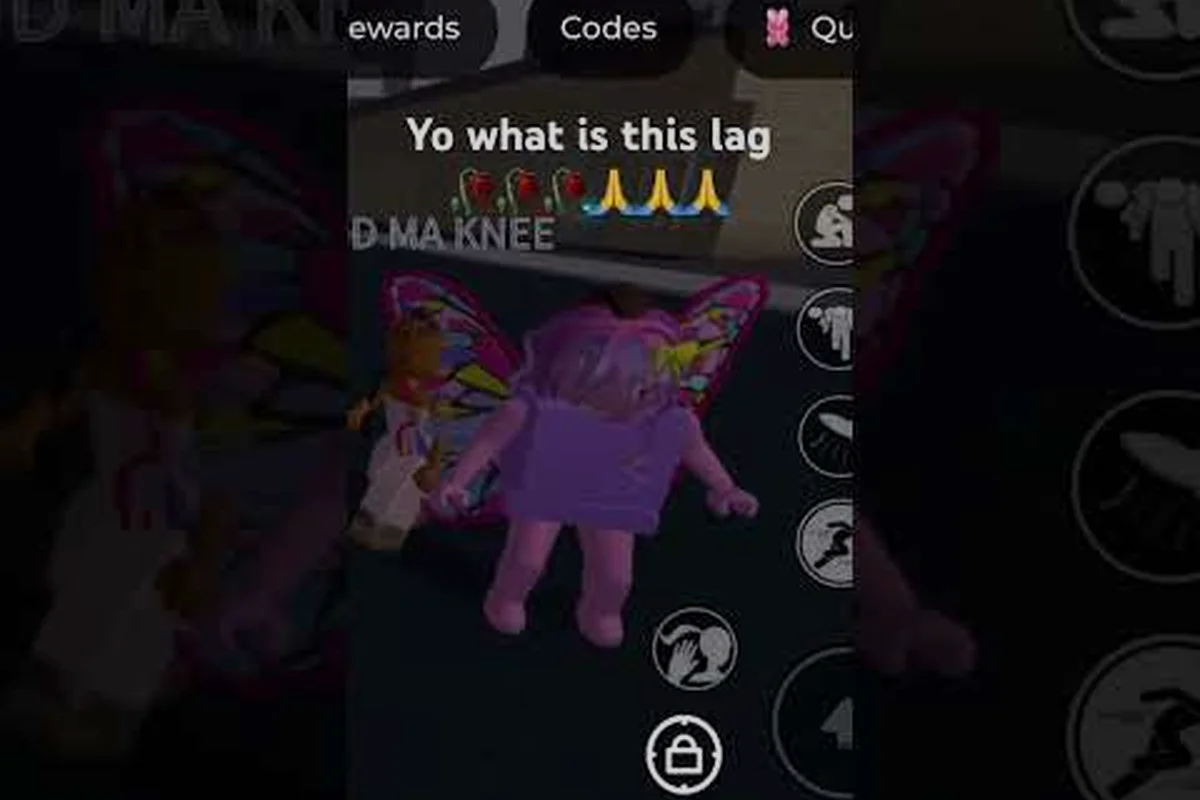
For problems that survive every fix in this guide, the next step is to file a report with the developer. According to the official Baddies game page, bug reports and support requests should be sent through the developer's Meow Meow Games! community group, which is the only channel the studio actively monitors. When you file a report, include your device specs, the exact error code or FPS number you are seeing, the time of day, and a short description of what you have already tried. Community videos like this lag breakdown and this gameplay lag capture are also useful references because they show the exact symptoms other players are reporting, which helps the developer confirm whether your issue matches a known pattern.
For deeper coverage of related troubleshooting topics, the Baddies error codes guide covers the 30 HP logout penalty and other session-level problems that often overlap with baddies low FPS symptoms.
Frequently Asked Questions
Why does Baddies low FPS get worse in crowded lobbies?
Baddies stacks many character models, weapons, glow effects, and a custom HUD on screen at once, so the GPU pipeline saturates once a server fills past 18-20 players. Community data from player recordings suggests performance drops by roughly 25-40% in that range. Switching to a private server or rejoining during off-peak hours is the cleanest fix.
How do I fix Baddies not loading past 90%?
The most common cause is a stale Roblox client cache. Close Roblox completely, delete the contents of %localappdata%\Roblox and %appdata%\Roblox on Windows, restart your machine, and relaunch. On mobile, clear the Roblox app's storage from system settings. Most players report a working game again within five minutes.
What causes the Baddies black screen right after the loading bar hits 100%?
That black screen is almost always a display driver issue rather than a game bug. Update your GPU driver, disable any overclocking software, and turn off fullscreen optimizations for the Roblox Player executable. Mobile users should clear the app cache and disable battery optimization for the Roblox app to keep the GPU at full clock.
How can I get past a Baddies server full message faster?
Use a rapid rejoin loop: press Leave, wait exactly two seconds, and press Join again. Repeat until you slip into a server that is still loading out a player. The two-second delay is critical because spamming faster triggers Roblox's rate limiter and bans you from matchmaking for 60-90 seconds. Off-peak hours between 6-10 AM local time have a 70-80% first-join success rate.
What do I do when Baddies controls not working shows up after a lag spike?
Open the Escape menu to test whether the input layer is alive. If the menu opens, the problem is a server desync and you should rejoin. If the menu is also unresponsive, reset your keybinds in the in-game settings or clear the Roblox client cache. Mobile users should pull down the notification shade to test touch input the same way.